 By admin
With the arrival of Artificial Intelligence, many platforms adopted the integration of AI features. Many social media applications and other platforms adopted the model of integrating AI features into their platforms. Snapchat introduced its My AI feature to enhance its user experience and play its part in the AI era.
This feature in Snapchat received ample attention when it launched, but with time, people felt it was a watchman using their data for personalized user experience. You will get information for your question about how to get rid of AI on Snapchat.
Meanwhile, as users explore new features, many are also curious about Snapchat’s trending terms, like what TTM means on Snapchat, which often pop up alongside My AI in conversations. While AI features raised privacy concerns, slang like “TTM” simply adds to the evolving Snapchat culture.
Is Snapchat AI Still Mandatory?
Snapchat’s My AI feature is no longer something you’re forced to keep in your chat list. While it is still part of the app, the platform now allows all users to remove it. This means you don’t have to see it every time you open your messages.
You can hide My AI, clear its chat, and delete the stored data connected to it. Although you cannot fully uninstall it from the app, you can easily stop it from appearing in your daily Snapchat use. For most people, this works the same as “turning it off.”
This change has made it much easier for users who want privacy and a cleaner Snapchat interface without upgrading to Snapchat+.
Understanding Snapchat’s ‘My AI’ Feature
Snapchat’s My AI feature is an AI-powered chatbot generated with GPT technology integrated into the chat feed. It was set to provide its users a facility to set reminders or countdowns within the app regarding snap streaks and other related information for their account.
It was made to interact with users directly to answer the questions of users, generate specific responses related to user interactions, and provide general to specific suggestions to them. Some users found it useful, but some considered it an unnecessary addition to the app. Some got happy with it, while some got hypersensitive regarding their privacy.
This AI feature was directly involved in user-to-user interaction; it was collecting and storing conversations. Such unwanted AI involvement and interaction caused serious privacy concerns for users regarding their data.
Reasons Why Users Want to Get Rid of Snapchat AI – ‘My AI’
Let’s learn why users want to remove or disable the AI feature from their account; this information will help you find out how to get rid of Snapchat AI:
- User Privacy Concerns: Users were uncomfortable with the idea of collecting personal data for better interactions of AI with users. My AI chatbot was collecting data from user-to-user interactions and storing it to train its AI model. This thing made the users feel threatened and insecure about their privacy. This has compelled the users to protect themselves, and they are actively searching for how to get rid of Snapchat AI on Google.
- Unwanted notification with AI presence in chat: Users hesitated with the unwanted notifications they were getting within the chat. They were not happy with the interruption by AI in the chat.
- Users prefer a Clean Interface: Users don’t want to interact with unwanted AI interruptions in their chat feed. They prefer a clean user interface for smooth user-to-app interaction.
If you are facing the above reasons, then you must find out how to get rid of AI on Snapchat. Don’t worry about that because you are in the right place. Let’s talk about some practical steps to remove AI from Snapchat.
How to Remove “My AI” from Snapchat?
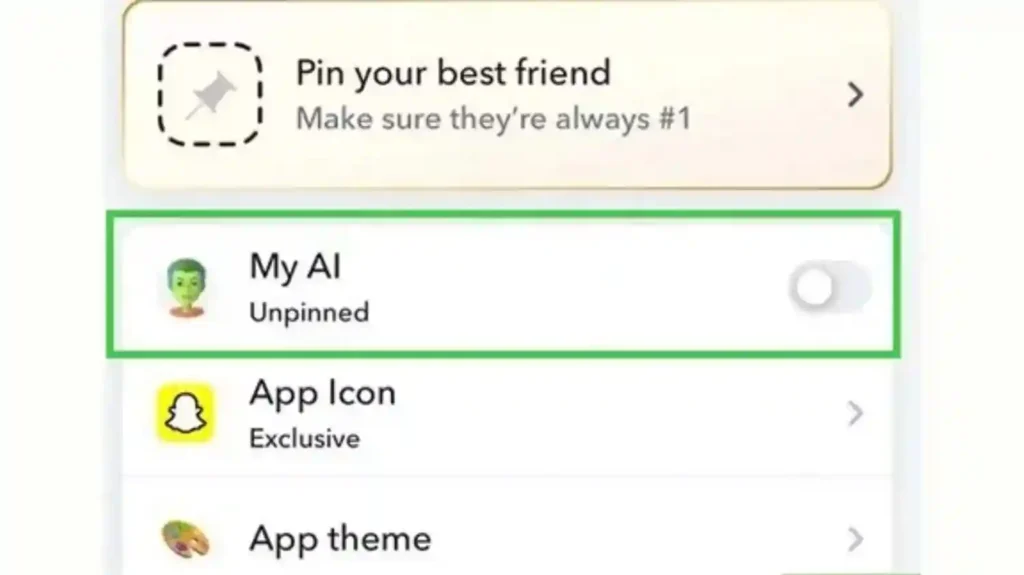
Snapchat has faced enough backlash on the My AI feature that they introduced two years ago. Yes, it is true because users actively rated them 1 star on the Google Play Store just because of this feature. Many are now searching for how to get rid of Snapchat AI to improve their experience.
You might be one of those users who are finding a solution on how to get rid of AI on Snapchat because it can be frustrating for you too. Check the steps below:
Remove My AI from Snapchat
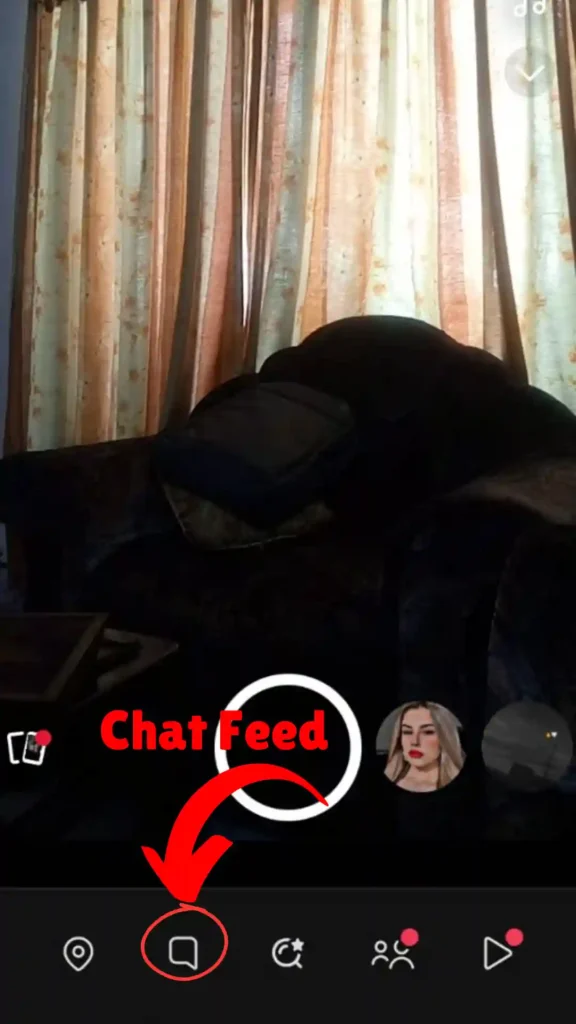
Removing My AI from your Snapchat chat feed is now simple and works for all users.
- Open Snapchat and swipe right to open the Chat screen
- Find My AI at the top of your chat list
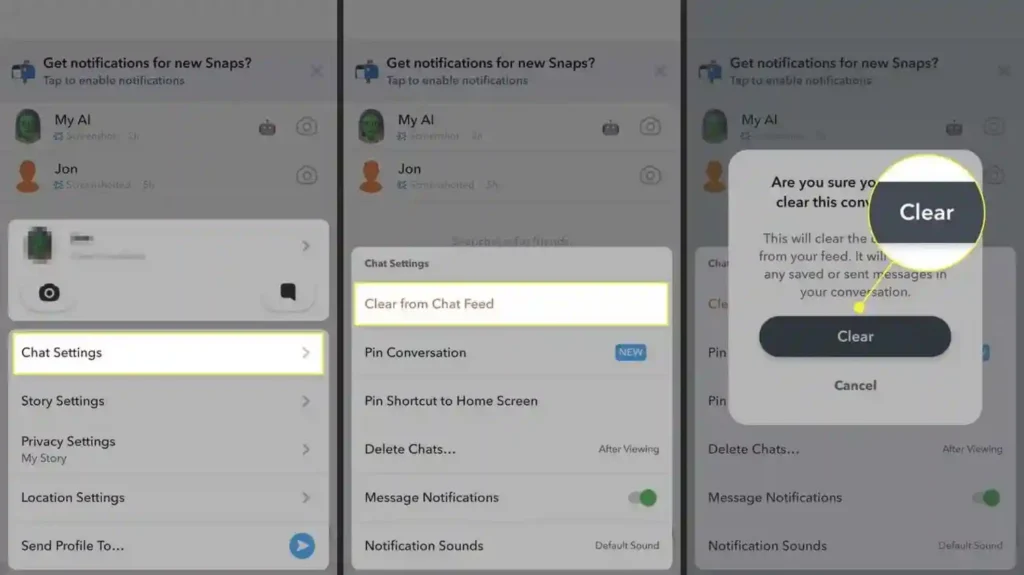
- Press and hold on the My AI chat
- Tap Chat Settings
- Select Clear from Chat Feed or Unpin Conversation
- Confirm your choice
Once you do this, my AI will no longer appear in your chat feed.
If you still see it later, don’t worry. It can come back after updates or app refreshes. Just repeat the same steps to remove it again.
You can also avoid clicking or messaging My AI. When it has no interaction, it remains hidden for longer.
Managing Data Associated with My AI
Clearing the My AI data removes your previous chats and requests from Snapchat’s system. Even after you remove My AI from your chat list, it is important to clear this data to reduce the storage of your information. Snapchat states that the deletion process can take some time to complete on their servers, but your request is logged immediately once you clear it.
For better privacy, it is recommended to clear My AI data at least once after removing it from the chat feed.
Clearing ‘My AI’ Data:
On iOS:
- Go to Profile > Settings > Privacy Controls > Clear Data > Clear My AI Data.
On Android:
- Go to Profile > Settings > Account Actions > Clear My AI Data.
Note: It may take up to 30 days to delete the relevant data from Snapchat servers.
Privacy Considerations
Data Collection by ‘My AI’:
- Information shared with ‘My AI’ may be used to improve the feature.
- Potential access to location data and user interactions.
Managing Location Data:
- Adjust location-sharing settings to limit data accessible to My AI.
Extra Privacy Steps to Block AI Access
If you want to limit how much data My AI can access, you can tighten a few extra settings on Snapchat.
You can turn off location sharing by enabling Ghost Mode on the Snap Map. This prevents My AI from using your live location in responses. You can also limit camera, microphone, and contact permissions from your phone’s app settings.
These small changes help reduce how much personal data is available to both Snapchat and its AI systems. When combined with clearing My AI data, it gives you better control over your privacy.
Conclusion
Getting rid of Snapchat AI is now much easier than before. You no longer need a paid subscription to remove My AI from your chat feed. Any user can clear it, unpin it, and delete its stored data in a few simple steps.
While the feature still exists inside the app, you can prevent it from appearing, stop interacting with it, and tighten your privacy settings to stay in control of your information.
If Snapchat’s My AI feels unnecessary or intrusive, use the methods shared above to clean up your chat list and enjoy a more private and distraction-free experience. For more details on ‘If You Remove Someone on Snapchat, Will They Know?‘, check out our other blog post.
FAQs
1- Can I permanently delete my AI from Snapchat?
No, you can’t. But you can remove it from your chat feed, clear all related data, and stop it from interacting with your account. This now works for both free and Snapchat+ users.
2- Does My AI have access to my data?
My AI may access information shared during interactions and, depending on settings, location data. It’s advisable to review and adjust privacy settings accordingly.
3- Will clearing my AI data affect other parts of Snapchat?
Clearing ‘My AI’ data specifically removes information related to interactions with the AI feature and does not impact other Snapchat functionalities.
4- How often should I clear my AI data?
It’s your personal choice and depends on how concerned you are with your data and privacy. Regular cleaning can minimize data retention.
5- Is there a way to prevent my AI from accessing my location?
Yes, by adjusting location-sharing settings in Snapchat, you can control whether My AI has access to your location information.
6- Does My AI come back after updates?
Sometimes, My AI may reappear after a major Snapchat update or app reinstall. If that happens, you can simply remove it again using the same “Clear from Chat Feed” method.